Send files to a remote coding agent by copying them onto the machine where the agent runs, then giving the agent remote paths. Use scp for a small manual transfer or a temporary batch folder when several files belong to one request.
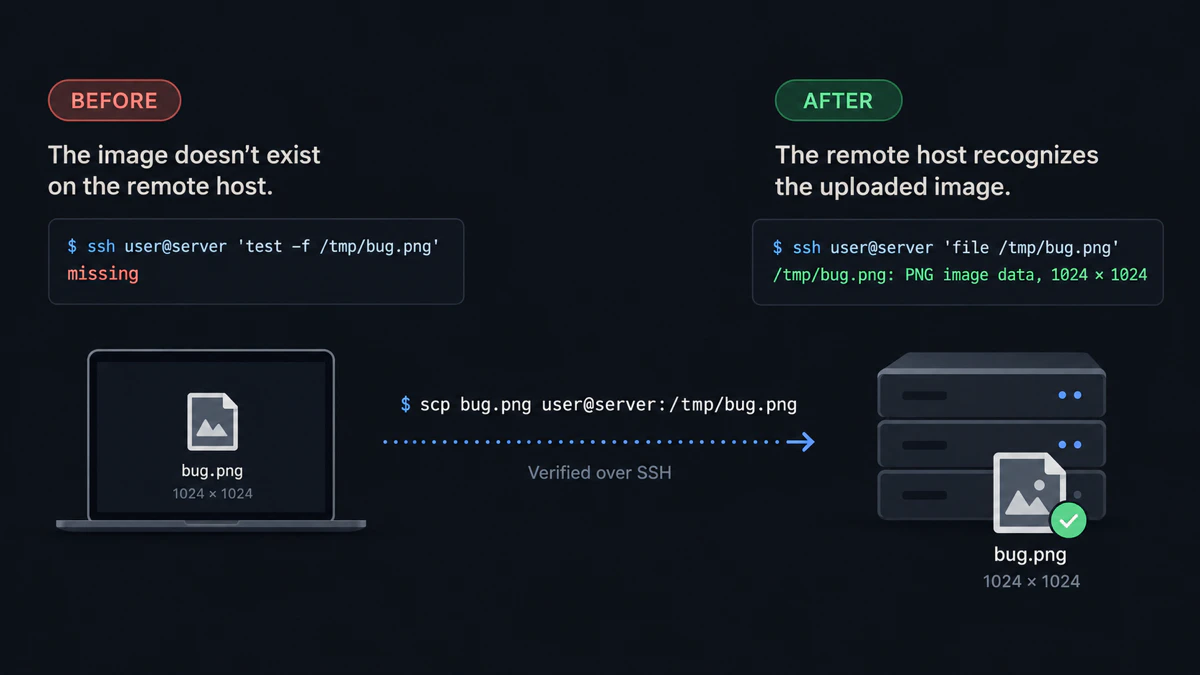
The tested boundary is simple: the remote process cannot inspect a laptop-only path; after scp, the same bytes are present on the host.
Why remote agents cannot see laptop files
An agent reads from the filesystem of the machine where its process runs. A screenshot in your laptop clipboard, a PDF in Downloads and a recording on Desktop do not become remote files when you paste their local paths into an SSH terminal.
The transfer mechanism is independent of the agent. OpenSSH documents that scp copies files between hosts over an SSH connection.
Send the files manually with scp
Keep the manual route visible because it is free, installed with OpenSSH and preserves the original filenames.
For one file, run scp on the laptop with the local path first and the remote path last:
scp ~/Desktop/bug.png user@server:/tmp/bug.pngExpected result: /tmp/bug.png exists on the server. The commands below copy several files into one remote directory.
macOS or Linux
ssh user@server 'mkdir -p /tmp/agent-input'
scp ~/Desktop/shot.png ~/Downloads/notes.pdf ~/Desktop/recording.mov user@server:/tmp/agent-input/
Expected result: all three files appear under /tmp/agent-input/ on the server.
Windows through WSL
ssh user@server 'mkdir -p /tmp/agent-input'
scp /mnt/c/Users/you/Desktop/shot.png \
  /mnt/c/Users/you/Downloads/notes.pdf \
  user@server:/tmp/agent-input/
Microsoft documents that Windows drives are mounted under /mnt in WSL.
Expected result: the selected Windows files are copied to the remote input directory.
Verify the remote batch
ssh user@server 'find /tmp/agent-input -maxdepth 1 -type f -print'Expected result: the server prints one remote path for every uploaded file.
Give those paths to the agent:
Inspect /tmp/agent-input/shot.png, /tmp/agent-input/notes.pdf, and /tmp/agent-input/recording.mov.Expected result: the agent opens paths that exist on its own host.
Send one folder prompt instead
Manual scp works well when you need the original filename or only have one or two files. For a disposable multi-file task, install vmup, complete the first SSH upload, and upload the set in one command:
vmup shot.png notes.pdf recording.movExpected result: stdout contains one result similar to this:
Uploaded 3 files → default
Agent folder: ~/vmup/agents-20260916-120000-a1b2c3d4/

Prompt:
Please inspect all files in ~/vmup/agents-20260916-120000-a1b2c3d4/
Remote names are normalized by type, and the default batch expires after five minutes. Use scp instead when the original basename or a permanent destination matters.
When rsync is the better tool
Use rsync for a directory tree that should remain synchronized between machines. Use scp for a direct copy and a temporary batch for a small set of evidence that belongs to one agent request.
Expected result: choose the transfer tool based on whether the remote data should persist and stay synchronized, not based on which agent will read it.
For filenames, spaces, and wildcard examples, read how to scp multiple files. For Cursor-specific local paths, read give Cursor access to local files over Remote-SSH. For Codex image flags, read attach an image to Codex CLI over SSH.
Last tested with
- Manual transfer: macOS 26.6, OpenSSH 10.3p1, localhost SSH target, September 16, 2026
- Linux transfer: Ubuntu 26.04, OpenSSH 10.2p1, Lima VM to localhost SSH target
- Batch workflow: vmup 0.4.0
- WSL path form:
/mnt/c/...transfer executed under Ubuntu 26.04 and checked against Microsoft’s WSL documentation; native WSL was not available
Quick answers
Why can’t a remote coding agent see files on my laptop? The agent process reads files on its own host. A laptop path points to a different filesystem.
Is scp enough to send files to a remote coding agent? Yes. It is the clearest manual solution for named files; you must then give the agent each resulting remote path.
Can I send PDFs and recordings as well as screenshots? Yes, if the agent supports reading those formats. The transfer boundary is the same for every file type.
Should I use rsync for agent inputs?
Use rsync for a directory tree that must stay synchronized. Use scp or a disposable batch for one request.
Disclosure: vmup is maintained by the author of this article. The manual scp workflow above is free and remains the best baseline when you need only a few named files.